
For vendors using Usakey
Replace a device
Deactivate a device that is no longer used so its slot can go to a new device. You or the user can do this.
How replacing works
The number of devices a license can use is capped by its policy (for example, up to 3). When a user gets a new computer, deactivating the old device frees a slot so the new device can be activated.
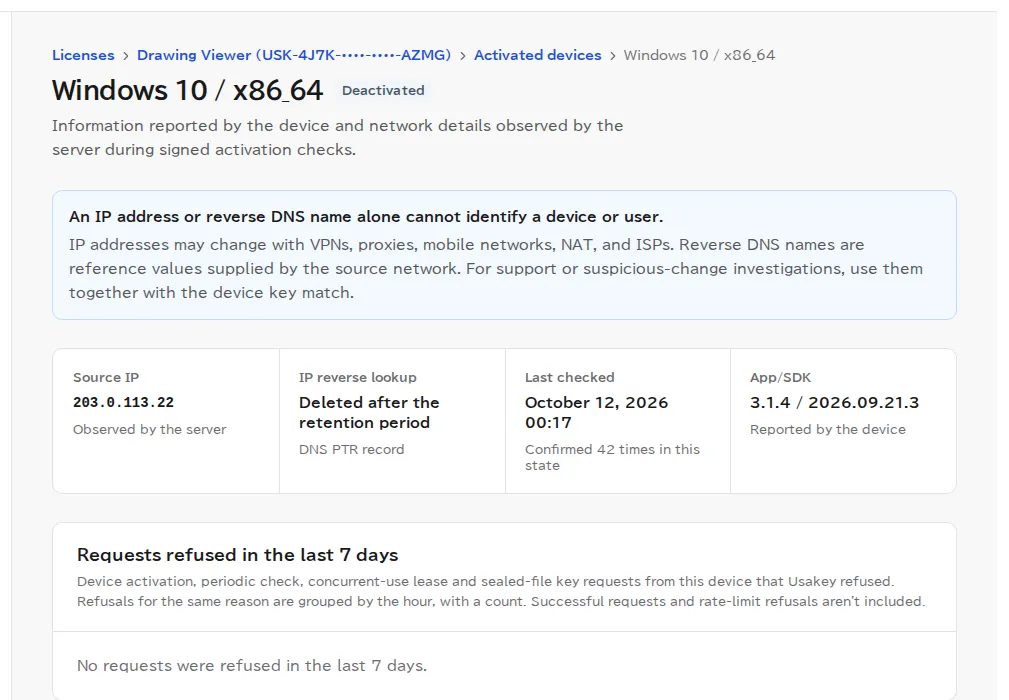
- A deactivated device stops working at its next periodic check.
- Deactivating doesn't block the device for good. If it activates again with the same license key, it can take any free slot. To stop it from being used, suspend or revoke the license (see Turn a license off and on).
- If you use the customer portal (Team plan and above), users can also deactivate their own devices.
Deactivate from the console
-
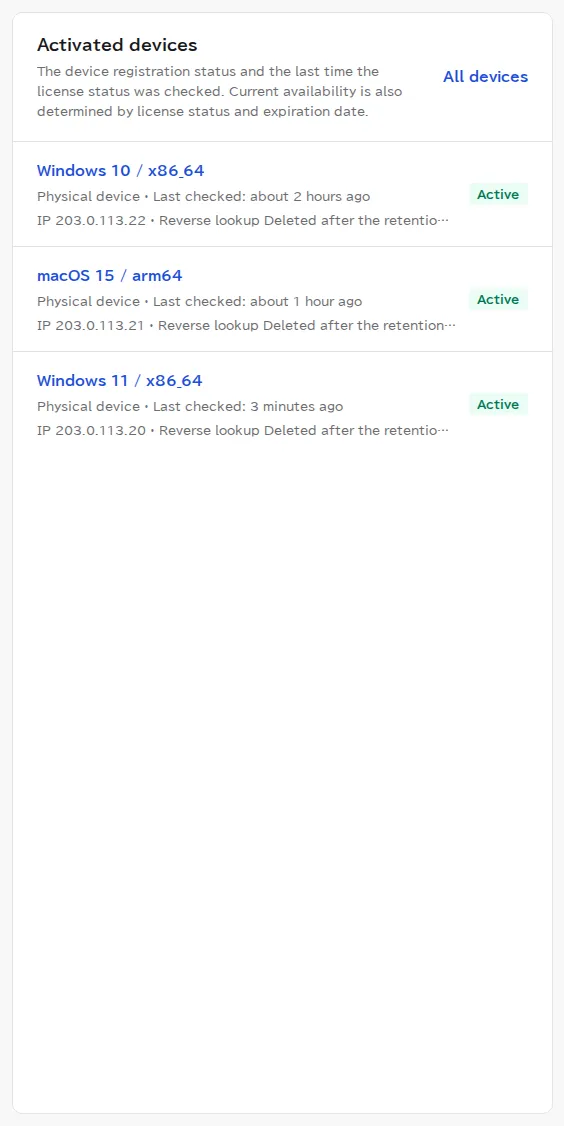
Step 1Open the device from the license's device list
-
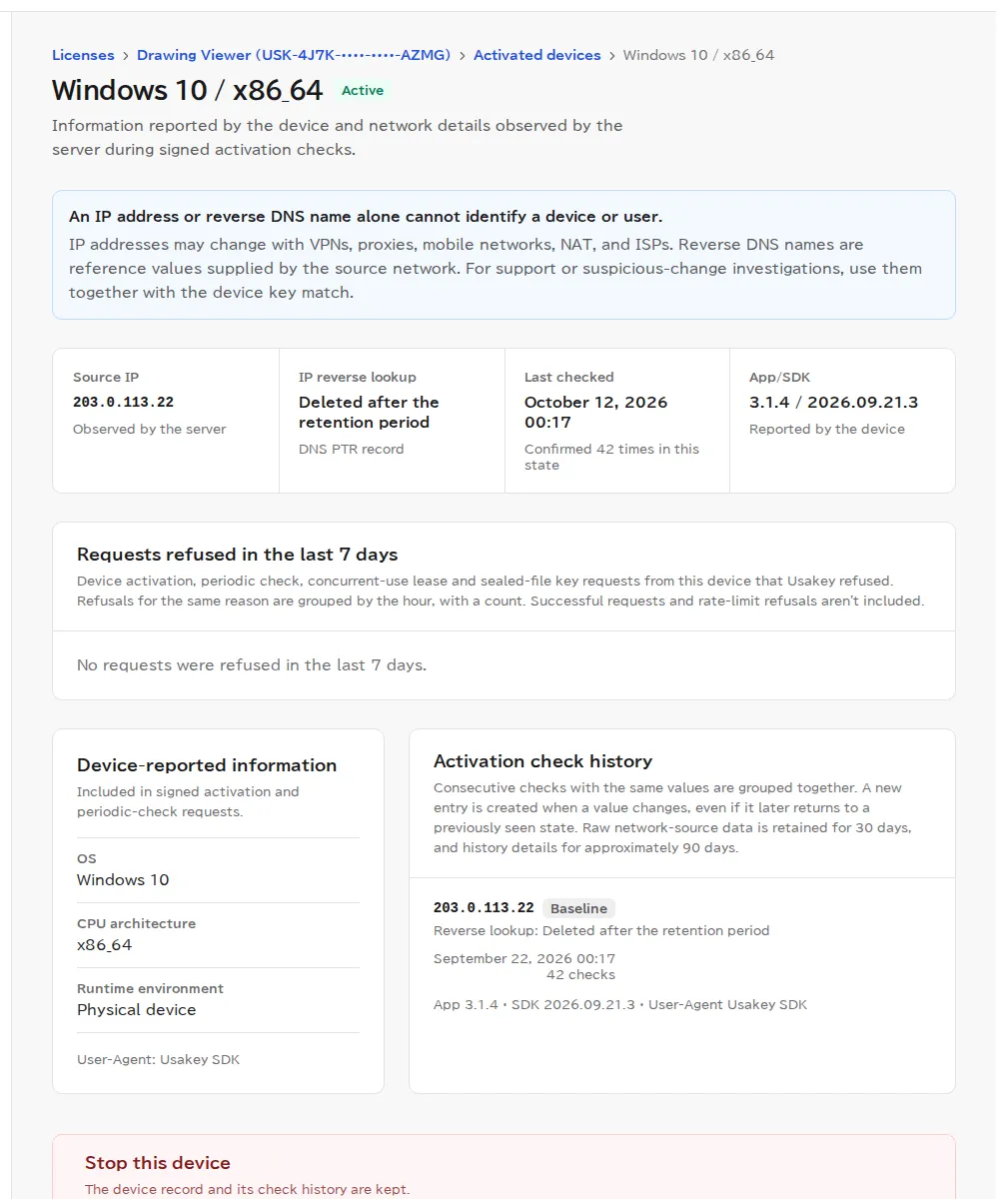
Step 2Review the device details
-
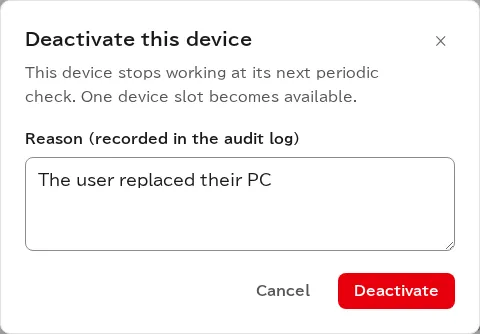
Step 3Enter a reason and deactivate
Users deactivate from the customer portal
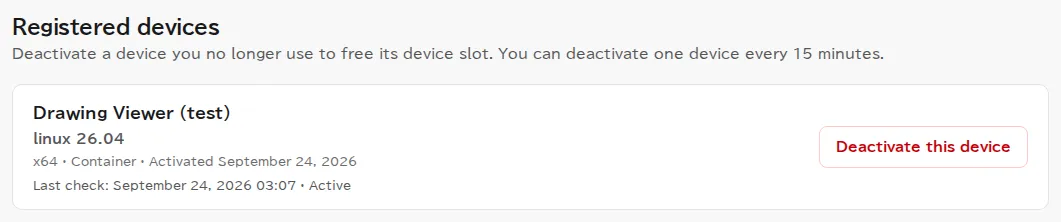
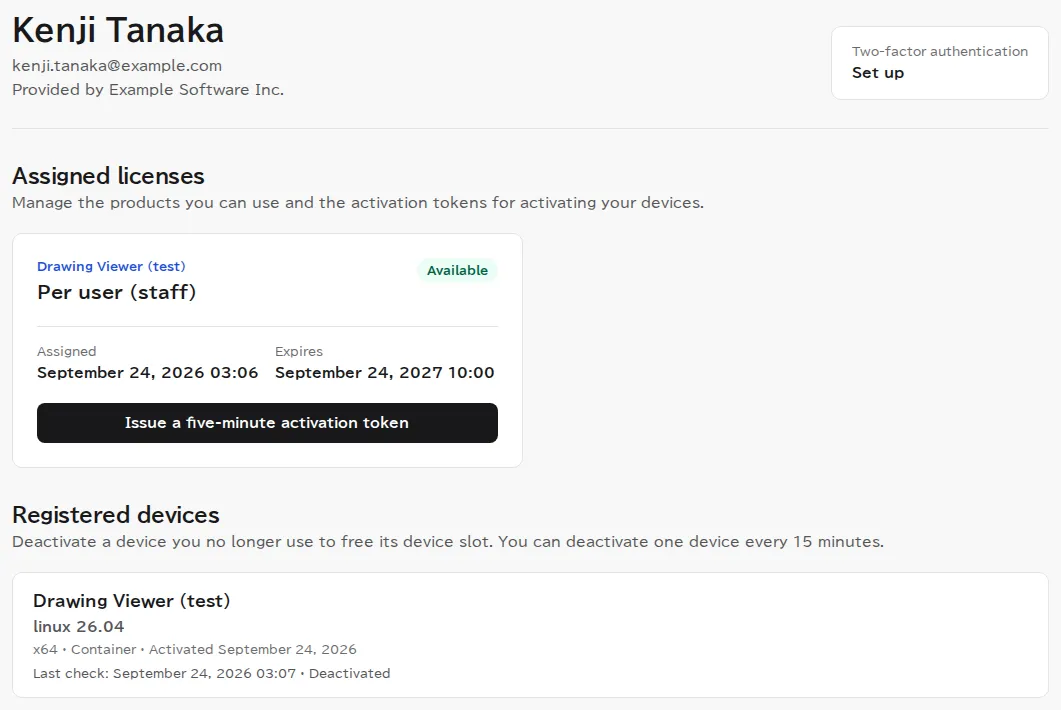
In the customer portal, Registered devices lists the devices the user activated. The user can select Deactivate this device (two-factor verification is required, and they can deactivate once every 15 minutes). Point your users to Get your license from the customer portal.
Screenshots were taken in a test environment with sample data. IDs such as product IDs, license keys, and activation tokens are masked. Some details may change as we improve the screens.