For vendors using Usakey

Monitor usage

Use the dashboard, license details, device information, and the audit log to see what is happening. Viewers can follow these steps too.

Plans
Evaluation Personal Team Enterprise
Who does this
Owner Admin Member Viewer

See the big picture on the dashboard

  1. Step 1Check the counts and what needs attention

    The Dashboard, which opens when you sign in, shows Active licenses, Activated devices, Expiring within 30 days, and how many concurrent-use leases are in use. Below that, Action required collects items that need you: licenses expiring soon, licenses at their device limit, devices whose information changed, failed webhook deliveries, and so on.

    Further down, you'll find Newly activated devices (last 14 days) and Recent activity.
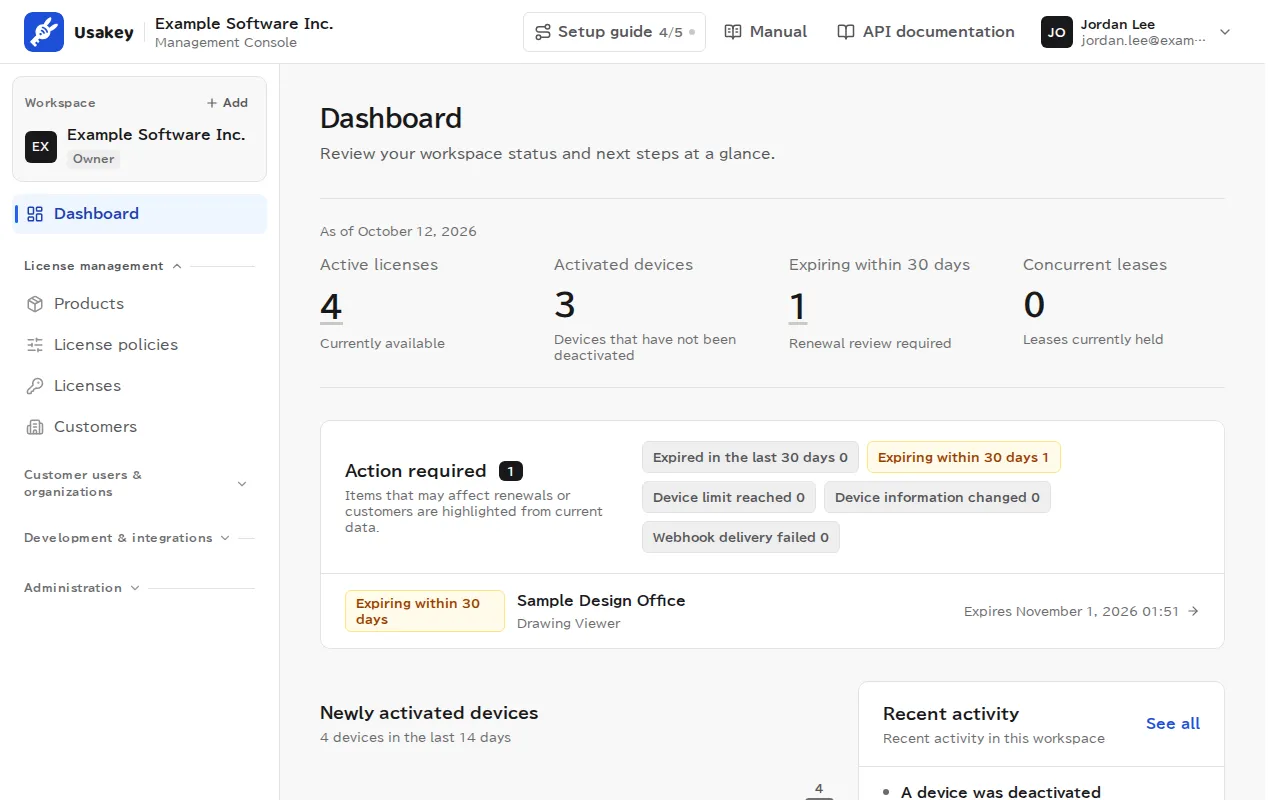
    The dashboard, showing 4 active licenses, 3 active devices, 2 expiring within 30 days, and 0 concurrent-use leases, with an action-required list (2 licenses expiring within 30 days), newly activated devices, and recent activity.

Check licenses and devices

  1. Step 2Find licenses in the list

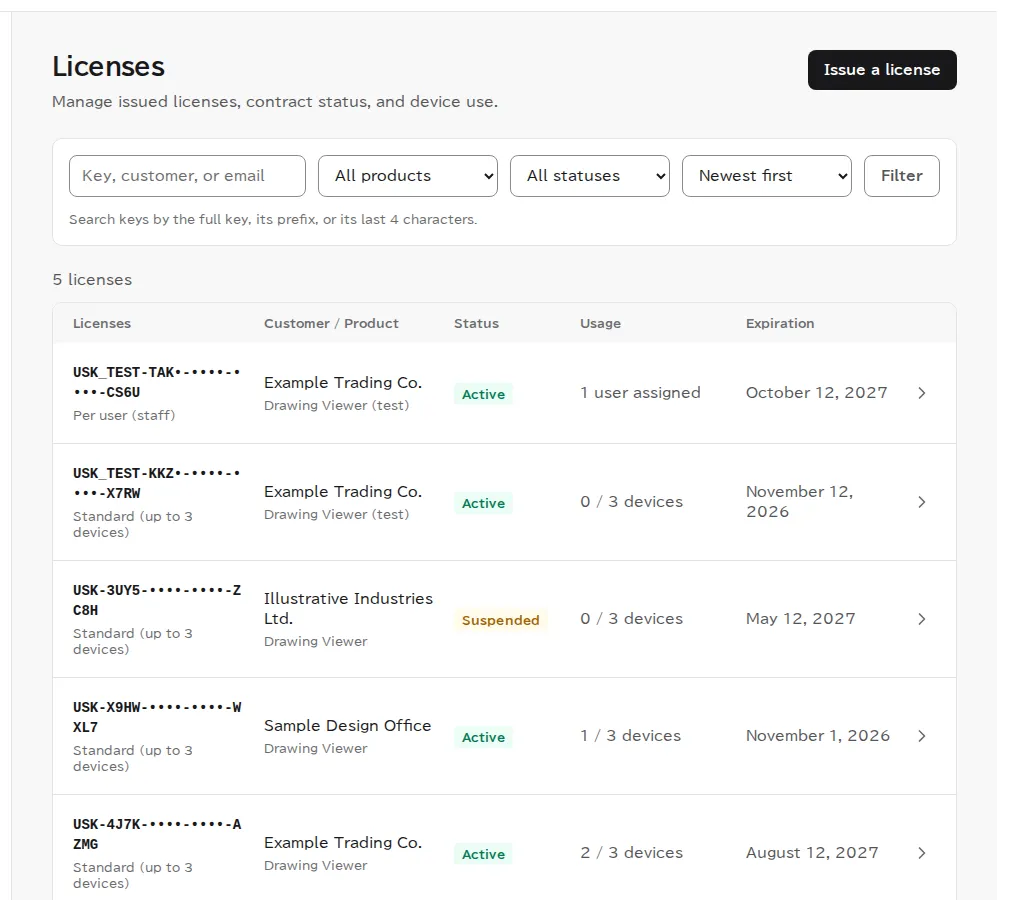
    Licenses in the left menu lists licenses with their customer, product, status, and expiration. You can search by part of a key or a customer name and filter by status.

    The license list, showing keys (partly masked), customers and products, statuses (such as Active and Suspended), usage, and expiration dates, with a search box and product and status filters at the top.
  2. Step 3See the devices using a license
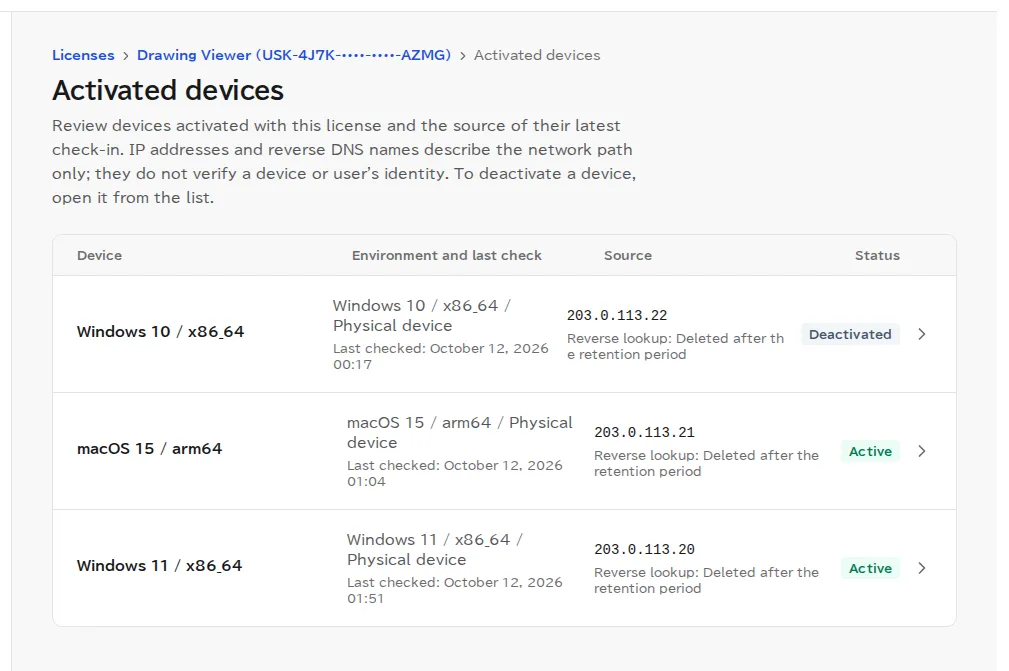
    From All devices on a license page, open the list of devices activated with that license. For each device, you can see its status and when it last checked the license status. A device that hasn't checked in for a long time is either unused or can't connect.

    The list of a license's devices, showing each device's OS, status, activation time, and last check time.

Check the audit log

  1. Step 4See who did what, and when

    Audit log in the left menu records actions in the console, device activations from apps, and actions in the customer portal, newest first. Entries can't be edited or deleted. Use Filter audit log to filter by action, actor, or date range.

    On the Enterprise plan, Export CSV (technical format) exports the log as a CSV file (a technical format for audits and system integrations).
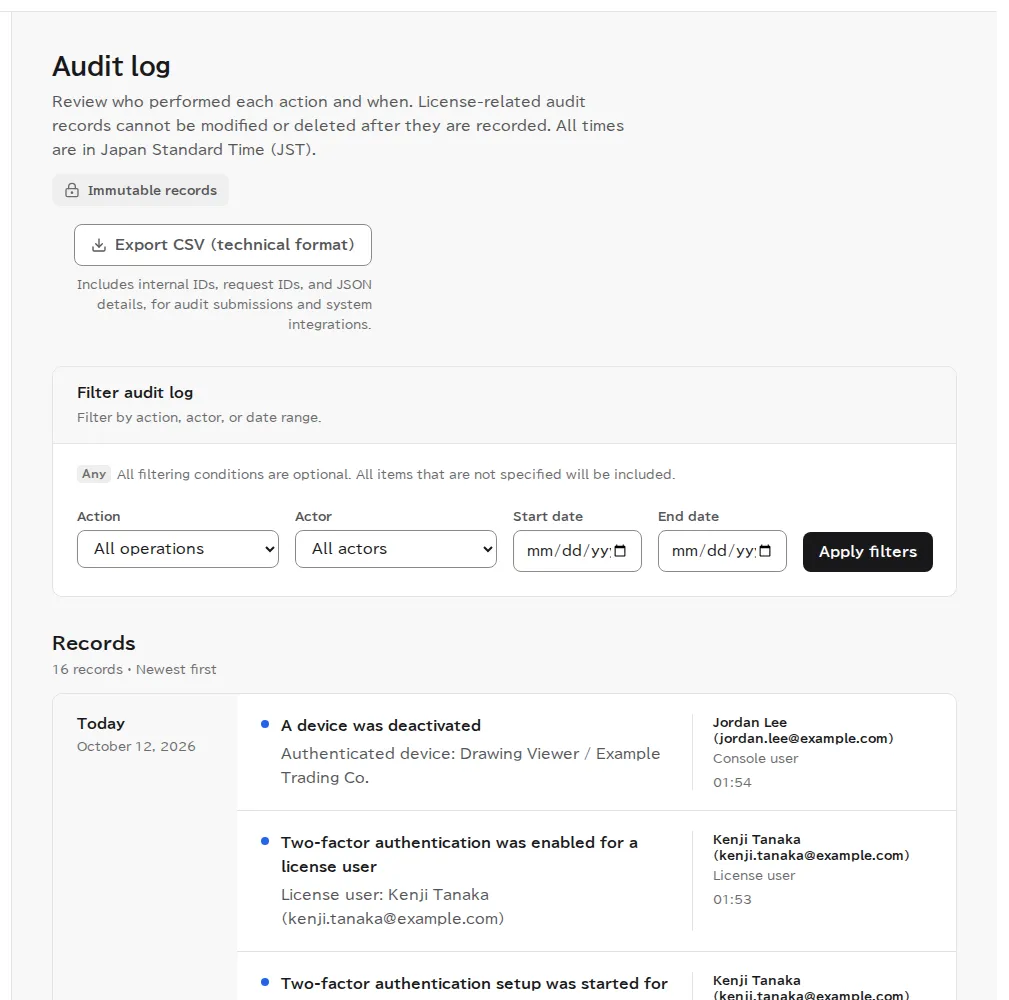
    The audit log. Filters and an Export CSV (technical format) button are at the top, and the entries include a device deactivated from the customer portal, a device deactivated from the console, and a new device activation, each with the actor and time.

What viewers see

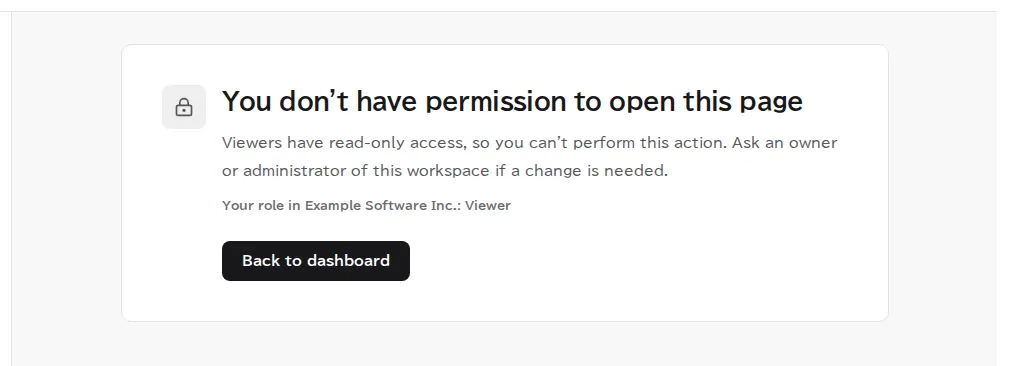
Viewers can see the dashboard, licenses, devices, the audit log, and so on, but can't change anything. Buttons for changes don't appear, and opening a form shows that they don't have permission and whom to ask. Viewers can still create and reply to Usakey Support requests.
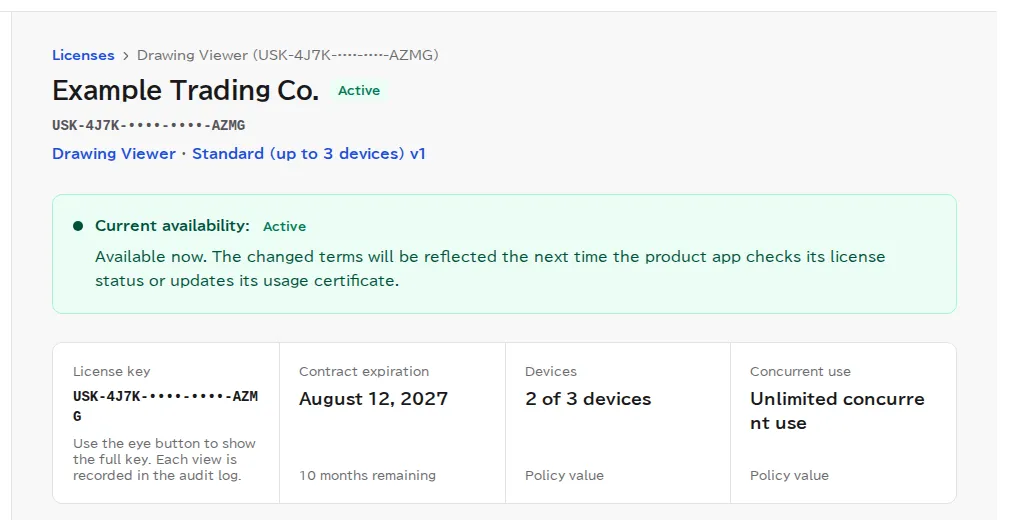
A license's details page opened by a viewer. The status and current access status are shown, but the Edit and Stop access buttons aren't.
What a viewer sees when opening the page for issuing a license: a message that they don't have permission to open this page, that viewers have read-only access, and that they should ask an owner or admin, with a Back to dashboard button.

Screenshots were taken in a test environment with sample data. IDs such as product IDs, license keys, and activation tokens are masked. Some details may change as we improve the screens.