
For vendors using Usakey
Turn a license off and on
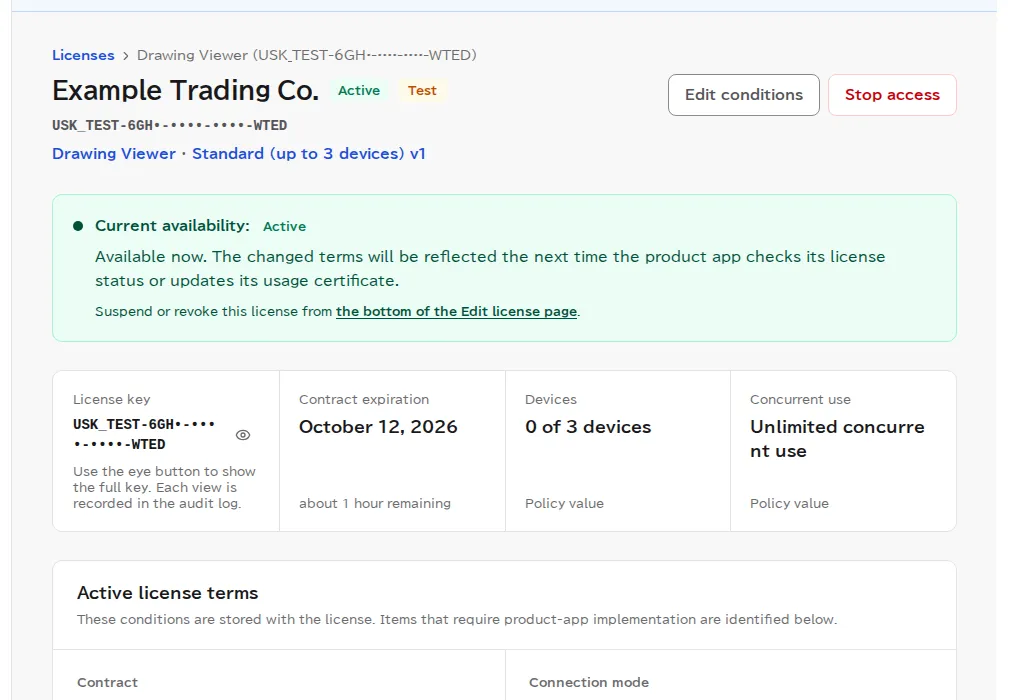
Suspend a license, confirm that your app stops working, then resume it and confirm that the app works again.
What you'll check
Use your integrated app to confirm that, even after a sale, you can stop the app from the console alone and then bring it back. The app output on this page is the real output of the Usakey integration starter (Python) running in our screenshot environment. Your app shows the same decisions in its own words.
Suspending is reversible: device activations and the license key stay as they are. To stop a license for good, you revoke it instead, but a revocation can't be undone.
Activate a device
-
Step 1Enter the license key in your app
In your integrated app, enter the license key you issued in Getting started to activate the device. Once it's activated, the protected feature (PDF export in this example) becomes available.
$ sdk_demo.py activate USK_TEST-••••-••••-••••-847D
[OK] Available (your license expires soon)
     Renew your license before Sep 24, 2026 04:04.
App output (SDK starter). All but the last 4 characters of the license key are masked. Evaluation-plan licenses expire in 1 hour, so the app says the license expires soon. -
Step 2Confirm the device appears in the console
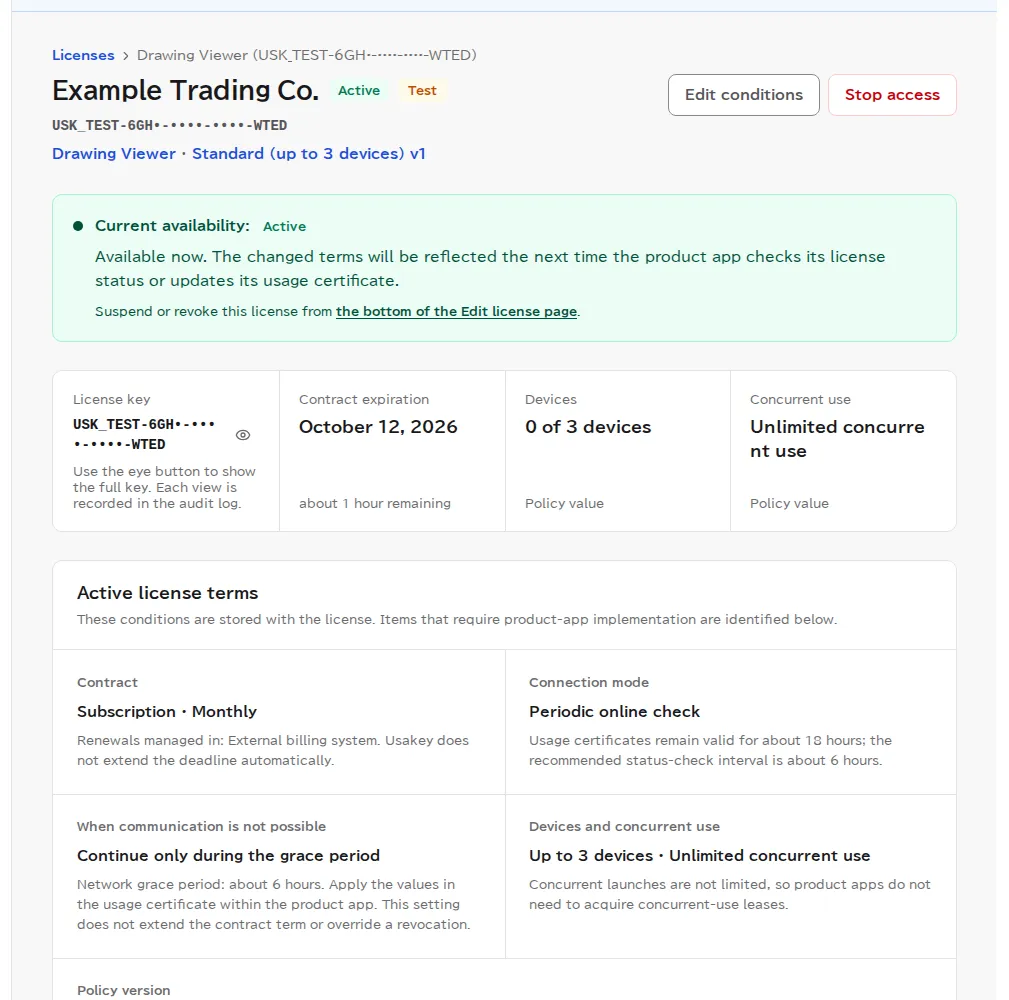
Suspend and confirm the app stops
-
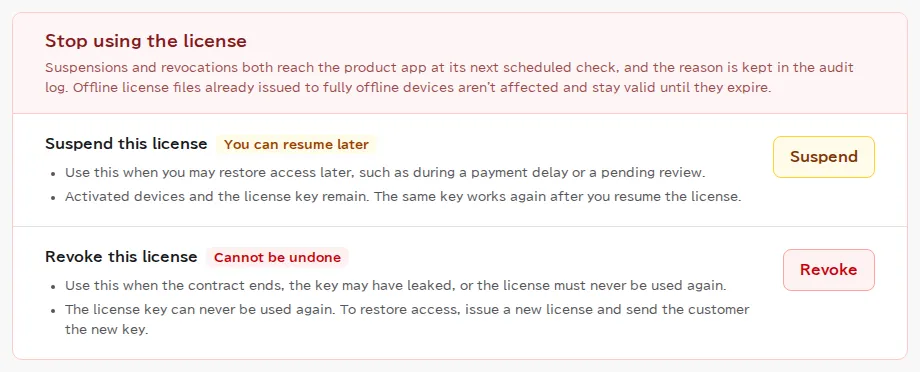
Step 3Open the actions that stop access
-
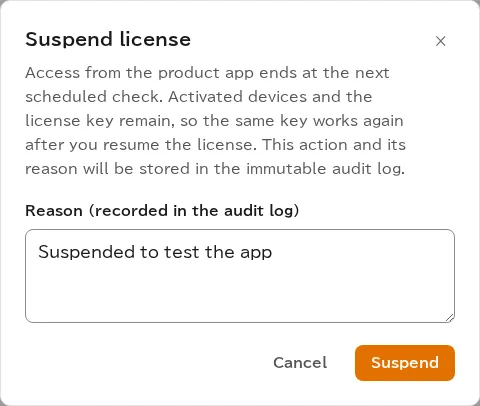
Step 4Enter a reason and suspend
-
Step 5Confirm your app stops
The next time your app checks the license status, it receives the suspension, and the protected feature stops working. To check right away, have the app check again, for example with a "Check now" option.
$ sdk_demo.py check
[NG] Suspended
     Contact your license administrator. When the license is resumed, this feature comes back at the next check.
App output after the suspension (SDK starter). The license shows as suspended and the feature can't be used.
Resume and confirm the app works again
-
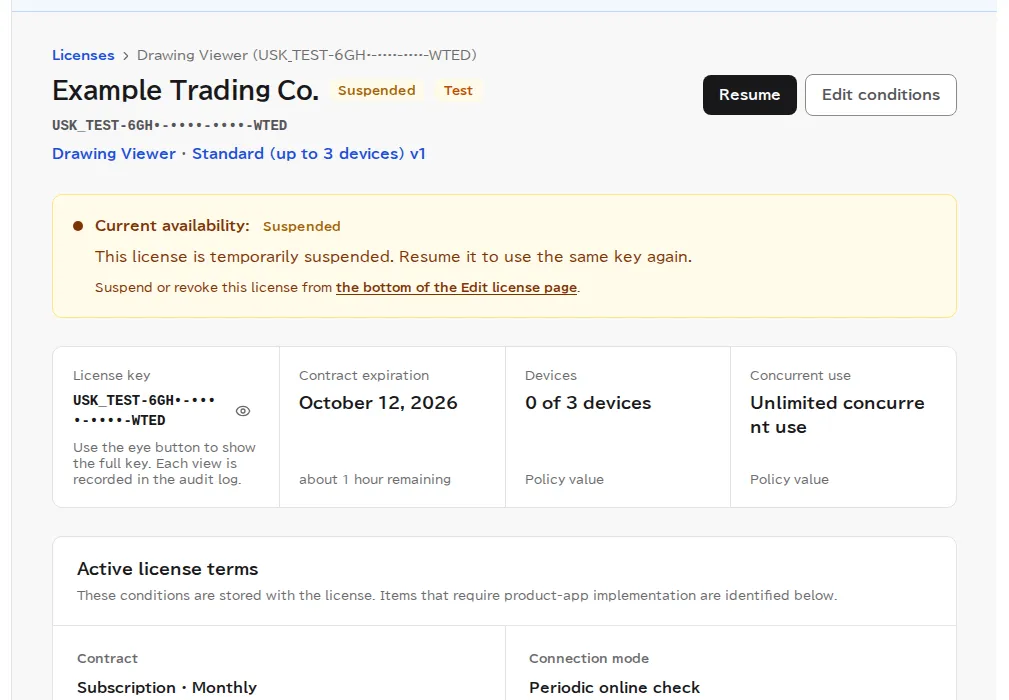
Step 6Resume the license
-
Step 7Confirm your app works again
At its next check, your app can use the feature again with the same license key. The user doesn't need to enter anything again.
$ sdk_demo.py check
[OK] Available (your license expires soon)
     Renew your license before Sep 24, 2026 04:04.
App output after resuming (SDK starter). The feature is available again.
How long changes take
A suspension or revocation reaches your app the next time it checks the license status. How often it checks is set by the policy's license status check interval. A device that can't connect stops when its current usage certificate runs out (certificate lifetime plus network grace period). The policy page shows the longest time it can take, with the current settings, from stopping access until the device stops.
Usakey doesn't make cracking impossible. If someone rewrites your app's decisions, it may not stop. To keep your ability to stop it, make the decision at every entry point of a protected feature, not just in what the screen shows.
Screenshots were taken in a test environment with sample data. IDs such as product IDs, license keys, and activation tokens are masked. Some details may change as we improve the screens.