
For vendors using Usakey
Manage AI assistant connections
Review what each connected AI assistant is allowed to do, and revoke connections you no longer use.
A connection for an AI assistant (Claude Code, Codex, and so on) is created when you approve it on the approval page in your browser (see Add license checks to your app). Anyone can review and revoke their own connections, whatever their role. Owners and admins see everyone's connections in the workspace.
See your connections
-
Step 1Check each connection and what it's allowed to do
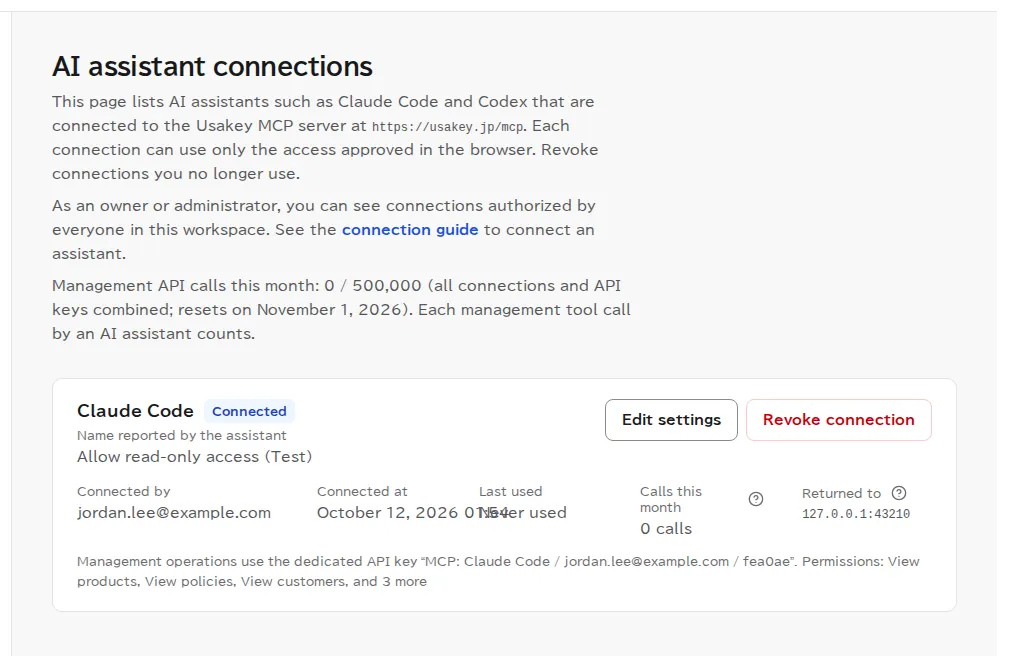
Open AI assistant integration in the left menu. For each connection, you see the app name, the access and environment you allowed, who connected it and when, Last used, and Calls this month. The app name is what the AI assistant calls itself; Usakey hasn't verified it.
A connection allowed to take management actions uses its own API key (named with an "MCP:" prefix). Calls to management tools count toward your monthly Management API allowance.
Change what's allowed
-
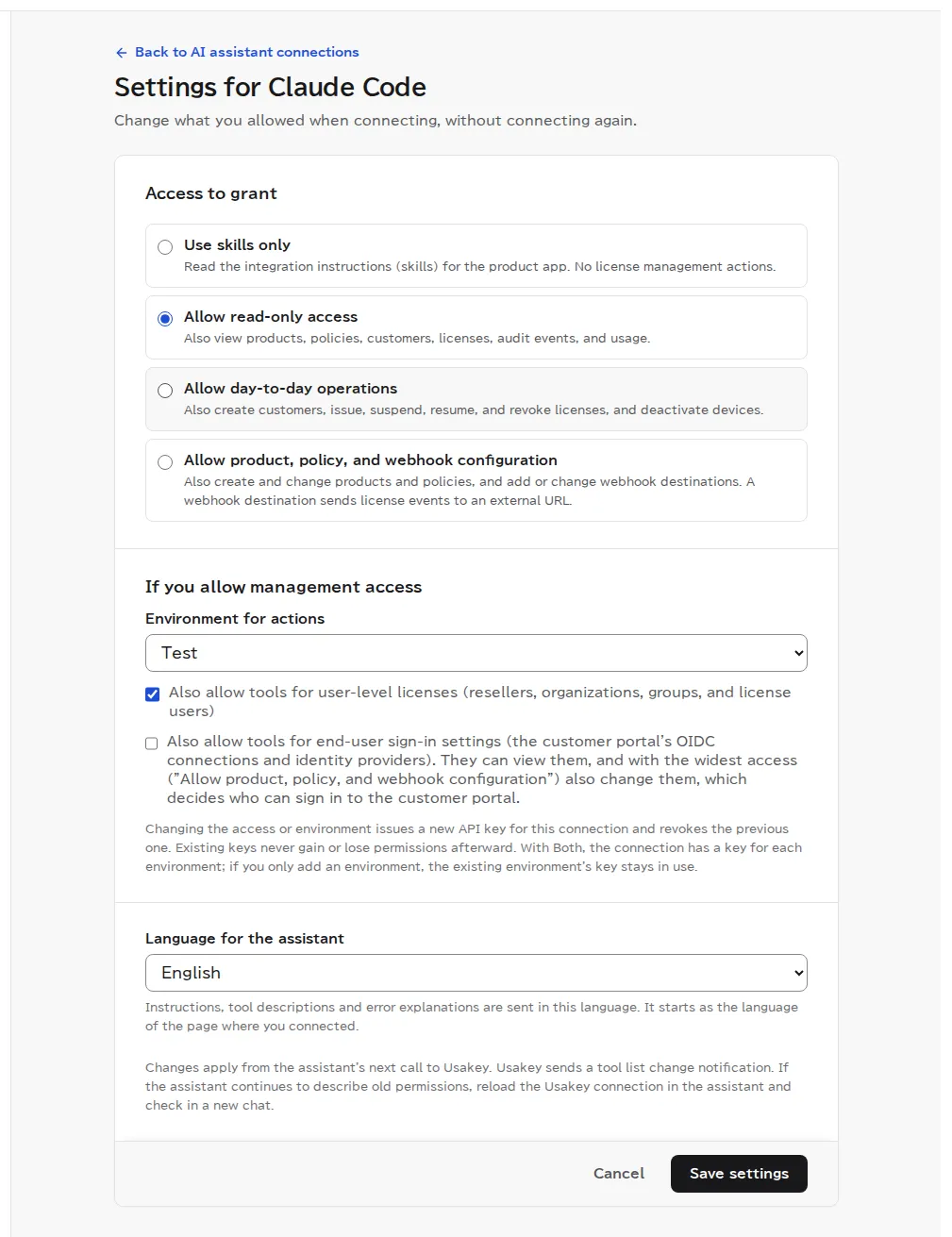
Step 2Change access without reconnecting
Revoke a connection
Revoke connections you no longer use, or don't recognize, with Revoke connection in the list. After that, the AI assistant can't use Usakey until you sign in again from the assistant and approve it. Connections that go unused for 30 days end automatically.
Screenshots were taken in a test environment with sample data. IDs such as product IDs, license keys, and activation tokens are masked. Some details may change as we improve the screens.