
For vendors using Usakey
Work as a team
Invite people and give them the owner, admin, member, or viewer role. Includes a table of what each role can do.
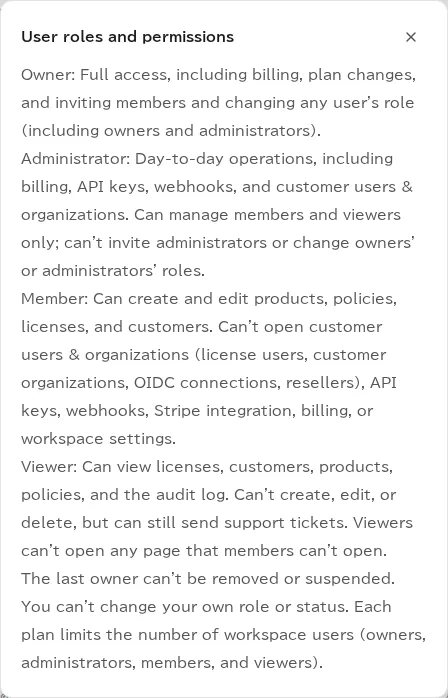
What each role can do
People in a workspace have one of four roles. Whoever signs up becomes the owner.
| Task | Owner | Admin | Member | Viewer |
|---|---|---|---|---|
| View products, policies, customers, licenses, devices, and the audit log | Yes | Yes | Yes | Yes |
| Create and change products, policies, and customers; issue, suspend, resume, and revoke licenses; deactivate devices | Yes | Yes | Yes | No |
| Manage license users, customer organizations, resellers, and OIDC connections (Team plan and above) | Yes | Yes | No | No |
| Manage API keys, webhooks, and the Stripe integration | Yes | Yes | No | No |
| Billing and plan, workspace settings, inviting people | Yes | Yes | No | No |
| Change or suspend owners and admins | Yes | No | No | No |
| Connect an AI assistant and use the skills | Yes | Yes | Yes | Yes |
| Allow an AI assistant to take management actions (read-only or more) | Yes | Yes | No | No |
| Contact Usakey Support (create and reply to requests) | Yes | Yes | Yes | Yes |
If someone opens a page their role can't use, they see why and whom to ask (see What viewers see). In the console, you can also check the differences between roles from the help next to the Workspace members heading.
Invite people
-
Step 1Ask them to create a Usakey account first
Invitations only reach Usakey accounts whose email address has been confirmed. People without an account, or who haven't confirmed their email address, get no invitation and no email. Ask them to sign up for Usakey and confirm their email address first. (Signing up also creates an Evaluation-plan workspace of their own, which they can ignore.)
-
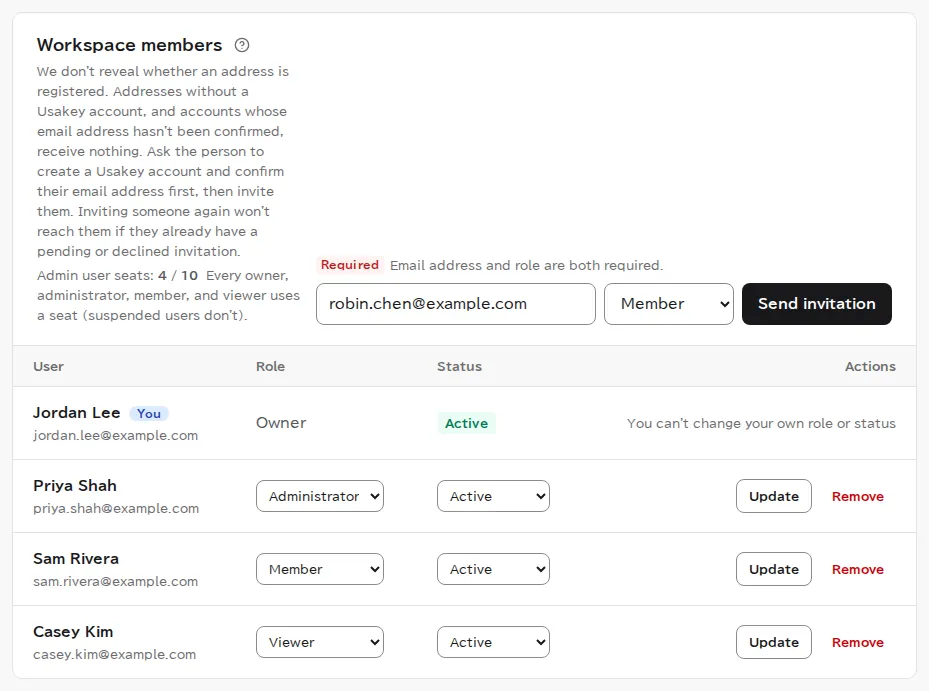
Step 2Enter an email address and role, then invite
Change or remove roles
In the same list, choose a role and status and select Update. To remove someone from the workspace, select Remove. Only owners can change or suspend owners and admins. You can't change your own role or status.
Admin seats
Every workspace user uses one admin seat, whatever their role (owner, admin, member, or viewer). The number of seats is set by your plan: 1 on the Evaluation and Personal plans, 3 on Team, and 10 on Enterprise. You can't buy extra seats on their own. Suspended users don't count, so suspending or removing a user you no longer need frees a seat. While all seats are in use, the invitation form is replaced by the reason and a link to your plan.
Screenshots were taken in a test environment with sample data. IDs such as product IDs, license keys, and activation tokens are masked. Some details may change as we improve the screens.