
For vendors using Usakey
Seal the files you ship
Encrypt files you ship with your product so that only your app on a device with a valid license can open them. Covers what sealing protects and what it doesn't, how to turn it on, how to seal files, and how your app opens them.
What it can do, and what to know before using it
Encrypt the configuration files, trained models, data files and other files you ship with your product, so that only your app on a device with a valid license can open them. Available on the Team plan and above. The files themselves are never sent to Usakey. Usakey only receives the short header at the start of each file (which product's key sealed it, the name of the entitlement needed to open it, and so on).
What to know before using sealed files
- An administrator of a licensed device can extract the data from memory or with a debugger after your app opens the file. Sealing does not prevent that.
- Data that has been extracted can't be taken back.
- Don't put values your users must never see, such as API keys or passwords, on the device, even sealed. Do the work that needs them on your own server.
- Sealing your files does not make analysis or cracking impossible; in principle both remain possible. Use sealed files with that understood.
- Sealing does not prove who made a file. Anyone who knows the sealing key can make a file your product opens. For files that must not be swapped, such as model weights or settings, have the app check a hash of the contents (example).
What it can do
- Getting hold of what you ship (an installer, a container image, a model file) is not enough to read the contents.
- Devices without a license, and devices beyond the license's device limit, can't open the files.
- Seal a file with an entitlement name, and only devices whose license has that entitlement turned on (true) can open it. For example, only Pro licenses can open the high-accuracy model, while Standard licenses get the standard one. An entitlement is a named on/off switch you set on policies and licenses.
- A device that learns at a periodic check that the license is suspended, revoked or expired can no longer open the files. A device that can't connect keeps opening them until it learns this (during the certificate's validity and the network grace period set in the policy).
- Changing even one byte of a file, truncating it or adding data to its end stops it from opening.
Turn on sealed files
-
Step 1Turn it on from the product page
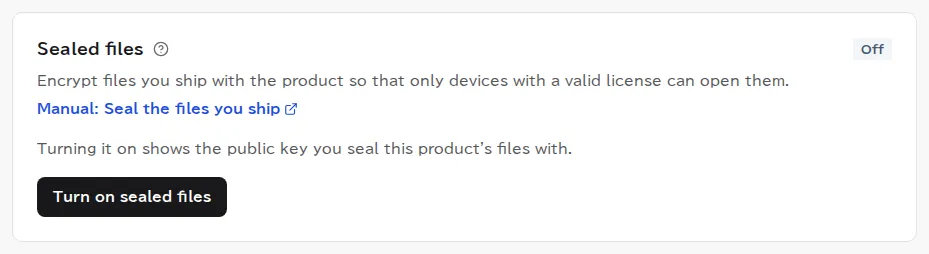
Open the product from Products in the left menu, and press Turn on sealed files in the Sealed files section. Read the confirmation message and continue, and it's on right away. Owners, admins and members can do this.
You can also ask an AI assistant. If its connection has “Allow product, policy, and webhook configuration” under Access to grant, ask “Use the Usakey MCP skill to turn on sealed files for this product and tell me its sealing key” (it can't be turned off afterward, so the AI confirms with you first). If the connection doesn't allow that, the AI will point you to this page.
Once on, it can't be turned off, because files you have sealed and shipped would stop opening. On the Evaluation plan the section shows Not in your plan and it can't be turned on.
-
Step 2Copy the sealing key
Once it's on, Sealing key (public) shows one line starting with
usakey-sealing-key:v1:. Copy it with Copy key and give it to the sealing tool.This line is not a secret, so it can live in your build settings, such as a CI variable. The private key that opens the files never leaves Usakey (in production it stays inside a key management service that never releases the key). The key part of the line is the same for every product in the environment: the environment shares one key, and products are told apart by the product ID and key ID in the line, so another product's app can't open your files. You can get the same line with
GET /mgmt/v1/products/{product_id}/sealed-filesin the Management API, or withget_product_sealed_filesfrom an AI assistant (MCP).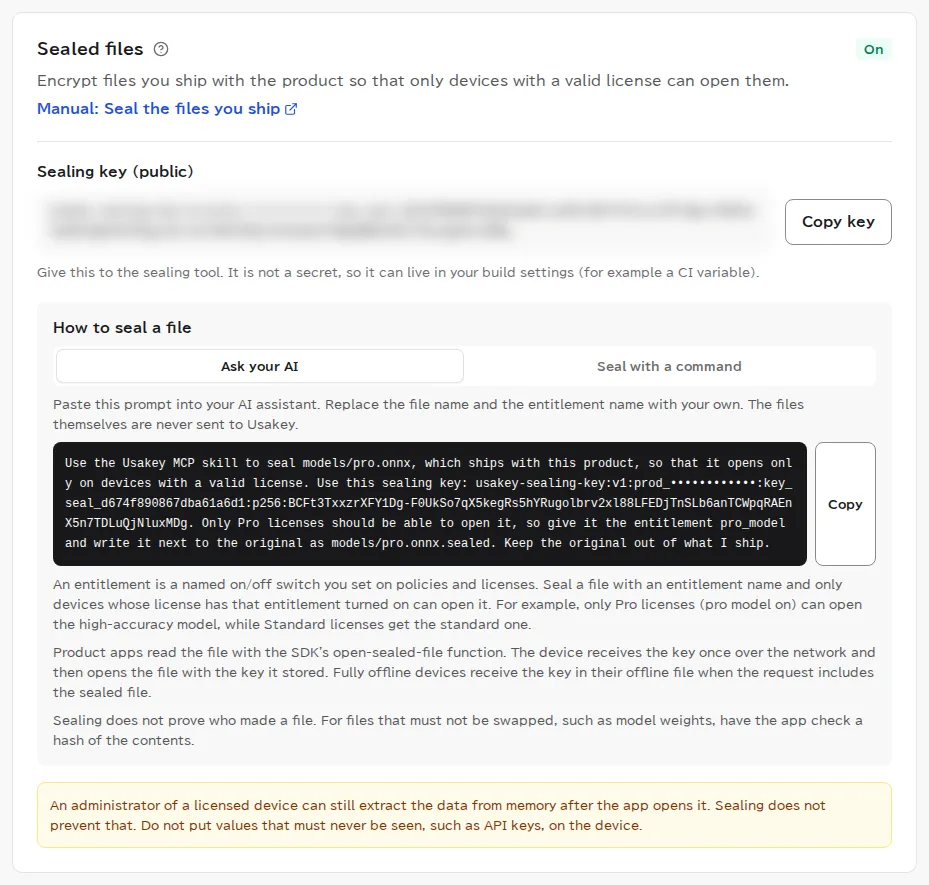
Seal your files
-
Step 3Seal your files
The easiest way to seal is to ask your AI assistant. The files are sealed on your own machine and are never sent to Usakey.
Paste this prompt into your AI assistant. Replace the file name and the entitlement name with your own.
Use the Usakey MCP skill to seal models/pro.onnx, which ships with my product, so that it opens only on devices with a valid license. Use the sealing key line I copied from this product's page in the Console (it starts with usakey-sealing-key:v1: and I'll paste it here). Only Pro licenses should be able to open it, so give it the entitlement pro_model and write it next to the original as models/pro.onnx.sealed. Keep the original out of what I ship.Use the sealing tool
usakey-sealthat comes with the SDK (usakey-sdk.zip). It needs a Rust build environment (cargo). Run it inrust/usakeyinside the unpacked SDK folder, like this.cd usakey-sdk/rust/usakey export USAKEY_SEALING_KEY="the line you copied" cargo run --locked --example usakey-seal -- \ seal --key "$USAKEY_SEALING_KEY" /path/to/model.onnx- It writes the sealed file next to the original with
.sealedadded to the name (for examplemodel.onnx.sealed). Use--outto write it somewhere else. An existing file with the same name is not overwritten (add--forceto overwrite it). - Add an entitlement name, as in
--entitlement pro_model, and only devices whose license has that entitlement turned on (true) can open the file. An entitlement is a named on/off switch that you set on your policies and licenses; write the name exactly as you set it there (1–64 letters, digits and_ . : -). cargo run --locked --example usakey-seal -- inspect model.onnx.sealedshows which product's key sealed the file, its entitlement and its sizes. It never shows the contents.
- It writes the sealed file next to the original with
-
Step 4Ship the sealed files with your product
Put the sealed files in your installer or container image. Don't ship the original files.
Each file is sealed with its own random key, so sealing the same file again produces a different file. When you ship a newly sealed file, each device fetches its key once more the first time it opens it. To seal files from your build system, you can also use the sealing function in the Rust, C ABI, Node.js, Python and Ruby SDKs (it produces the same format).
Open them in your app
Building this into your app is also easiest with an AI assistant. Connect it the same way as in Add license checks to your app and ask like this. Replace the file name and the entitlement name with your own.
Use the Usakey MCP skill to make this app open models/pro.onnx.sealed with its license. Load it only when the pro_model entitlement is on, and when it can't be used, fall back to the standard model and show the reason.The AI writes the code that reads the file with the SDK's open-sealed-file function, and tests for it. It's available in the Rust, C ABI (C), Node.js, Python and Ruby SDKs. The SDKs for other languages don't support it yet. The SDK function works like this.
- Every time it opens a file, it checks the current license decision and opens the file only when use is allowed. If the file has an entitlement name, the decision is made for that entitlement.
- Only the first time a device opens a file does it contact Usakey to receive the key (this uses one Runtime API call from the monthly allowance). The device stores the key and opens the file without connecting after that.
- The SDK never gives your app the key that opens the file; it returns only the opened data.
To build it yourself, see Receive the key for a sealed file in the developer documentation.
Example: a machine-learning model and its preprocessing
This example ships trained weights and preprocessing parameters (feature order, means and standard deviations, the decision threshold, and so on) with the product so that only the product app on a device with a valid license can read them. The SDK's python/examples/sealed_model has a version you can run, from training and sealing to loading and scoring in the app (Python standard library only).
- Seal in your build. Write the weights and the preprocessing to files and seal each with the sealing key. Give the high-accuracy model an entitlement (for example
pro_model). Ship only the.sealedfiles. - Pin the plaintext hashes in the app. In the same build, compute the SHA-256 of each file before sealing and embed it in the app's code. A hash doesn't reveal the weights. A fake file made by someone who knows the sealing key opens, but its hash doesn't match, so the app doesn't load it.
- Load in memory. Load the data the SDK returns as it is, and never write it to disk, logs or temporary files. Pick formats that load from bytes (ONNX Runtime's
InferenceSession(data), safetensors, NumPy.npzwithout pickle, JSON, and so on).
# Your build (seals with the public key only)
usakey.seal_file(sealing_key, "model.onnx", "dist/model.onnx.sealed", entitlement="pro_model")
usakey.seal_file(sealing_key, "preprocess.json", "dist/preprocess.json.sealed")
print(hashlib.sha256(open("model.onnx", "rb").read()).hexdigest())  # embed in the app

# The product app (checks what it opened, then uses it in memory)
model = client.open_sealed_file("dist/model.onnx.sealed")
if not hmac.compare_digest(hashlib.sha256(model).hexdigest(), MODEL_SHA256):
    raise RuntimeError("This is not the model this app was built with")
session = onnxruntime.InferenceSession(model)- A license whose entitlement isn't turned on (true) can't open the high-accuracy model (in Python,
LicenseDeniedErrorwith the reasonEntitlementMissing). The app can switch to the standard model and keep working. - Don't load pickle-based formats (
joblib,torch.loadby default, and so on) from sealed files. A fake file could make your app run arbitrary code. - An administrator of the device can extract the weights from memory after the app loads them. If the weights must never reach devices, run inference on your server instead.
Fully offline devices
Devices without an internet connection can open sealed files too. Fully offline activation (Offline Activation) is available on the Team plan and above.
- When the device creates its request file (
.usakeyreq), include the sealed files (up to 16 per request). Only the files' headers go into the request file. - When you issue the license file (
.usakeylic) in the Console or with the Management API, the keys for those files go into it. If the key for even one file can't be delivered, nothing is issued and the reason is shown (a file for another product, an entitlement that isn't true, a plan that doesn't include it, and so on). - After loading the license file, the device opens the files without connecting. To add another file later, create a new request file and issue the license file again.
How to exchange request and license files is in Steps for fully offline devices in the developer documentation.
When a file doesn't open
What your app receives and what to check. None of these deactivates the device.
| What's happening | What your app receives | What to check |
|---|---|---|
| The entitlement named in the file isn't true for this license | SEALED_FILE_ENTITLEMENT_REQUIRED | Whether the policy or the license has an entitlement with the same name set to true |
| The file was sealed with another product's key, was damaged or was changed | SEALED_FILE_INVALID | Seal it again with this product's key and reinstall the file |
| Usakey can't deliver keys for a moment | SEALED_FILE_KEY_UNAVAILABLE | Open it again a little later |
| Your plan doesn't include sealed files | PLAN_ENTITLEMENT_REQUIRED | Return to the Team plan or above and the same key opens the files again |
| The license is suspended, revoked or expired | A decision that use isn't allowed (sometimes a code such as LICENSE_SUSPENDED) | Not opening is correct. Resume a suspended license, or extend an expired one, and the files open again (a revocation can't be undone) |
When Usakey refuses to deliver a key, open the device on the license in the Console: "Requests refused in the last 7 days" shows the reason and how many times it happened. The product app refuses some files itself before connecting (a file for another product, an entitlement that isn't true, and so on). Those don't appear there, so check the code or decision the product app received.
You can check which plans include sealed files in the comparison table on the pricing page.
Screenshots were taken in a test environment with sample data. IDs such as product IDs, license keys, and activation tokens are masked. Some details may change as we improve the screens.