
For people who use your software
Verify your license with your email address
Enter your email address in the software, verify yourself with the code you receive, and start using the software.
What you need
This guide is for you if your software provider asked you to verify your license with your email address. A verification code sent to the email address you enter in the software confirms that it's really you.
- The email address your provider hasThe address you gave your software provider. Codes aren't sent to other addresses.
- Access to that inboxThe verification code works for 10 minutes only.
- The installed softwareBe ready to open its activation (license entry) screen.
- A passkey or an authenticator app (only if you were told so)If your provider asked you to use two-factor authentication, have your registered passkey (your computer's or phone's fingerprint, face, or PIN, or a security key) or the authenticator app on your phone ready too.
Enter your email address
-
Step 1Enter your email address on the activation screen
On the software's activation screen, choose to verify with your email address and enter the address your provider has. If it also asks for a license key, enter the key your provider gave you. The wording and layout depend on the software.
The software shows the same message even if the address isn't registered (so the screen doesn't reveal which addresses are). If no email arrives within a few minutes, see Troubleshooting.
Enter the verification code
-
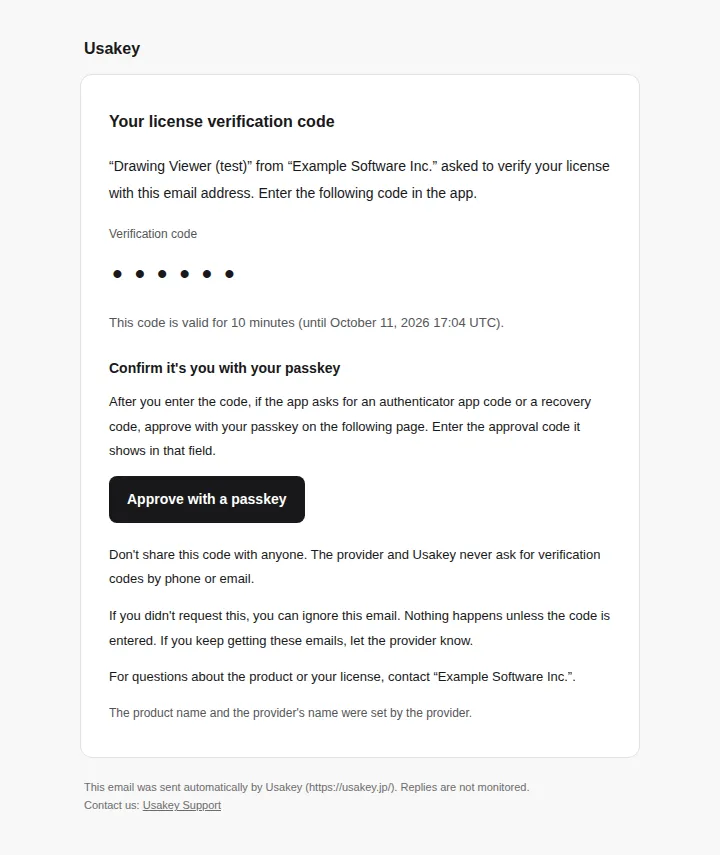
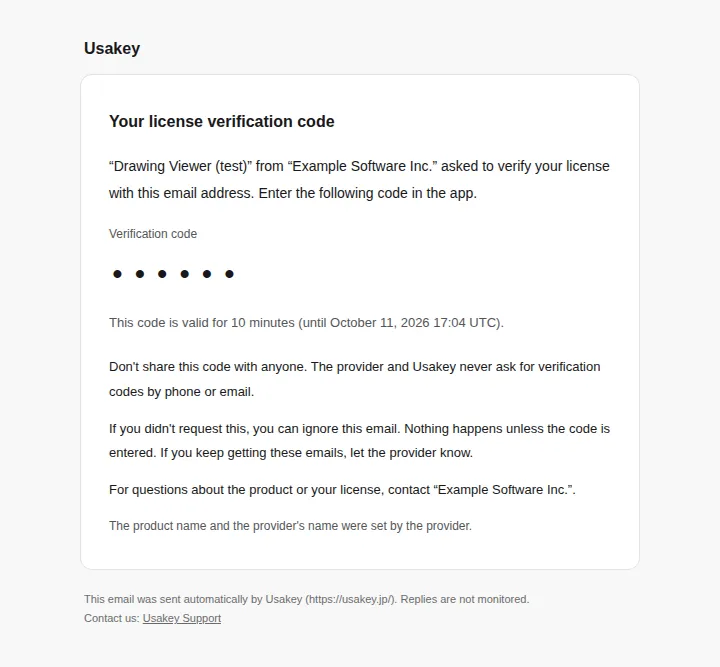
Step 2Find the verification code in the email
-
Step 3Enter the code in the software
Enter the verification code in the software. If you use two-factor authentication, the software then asks for an “authenticator app code or recovery code”. With an authenticator app, enter its 6-digit code. With a passkey, enter the approval code from the next step. Once you're verified, you can use the software on that computer, and you don't need to enter a code each time you start it.
-
Step 4Approve with your passkey (if you registered one)
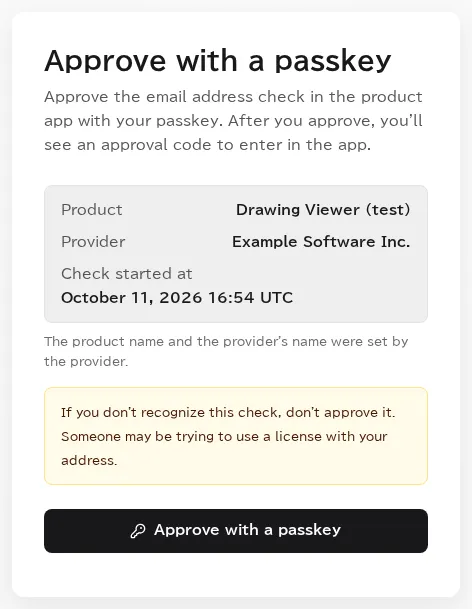
Open the Approve with a passkey link in the verification code email. The page shows the product, the provider, and when the check started. Make sure you started this check, then choose Approve with a passkey and confirm with your device's fingerprint, face, or PIN.
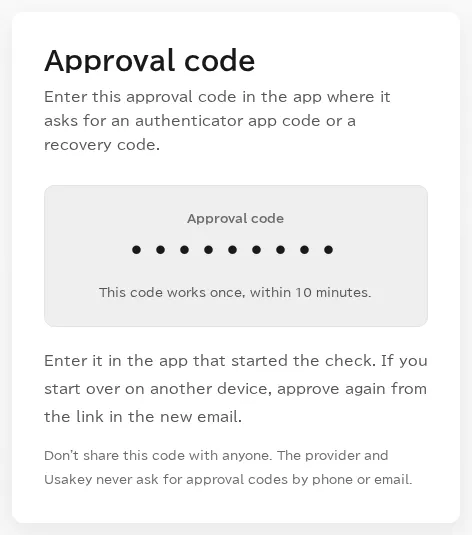
When the Approval code appears (for example, ABCD-EFGH), enter it in the software's “authenticator app code or recovery code” field. The approval code works for that check only, for 10 minutes, once. Don't approve a check you didn't start.
Register a passkey (only if you were asked)
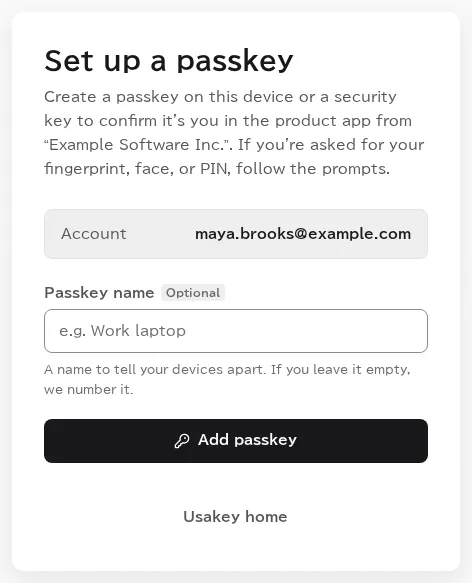
If your provider set you up for passkeys, you receive an email from Usakey with the subject [Usakey] Set up a passkey.
-
Step 5Register a passkey from the email link
-
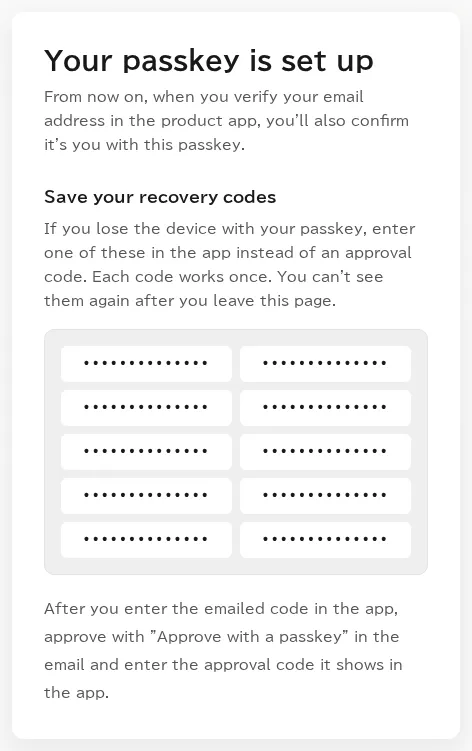
Step 6Save the recovery codes
Troubleshooting
- The verification email doesn't arrive
- Check your spam folder. If it still doesn't arrive, ask your software provider to check the email address they have for you and that a license is assigned to you.
- The software says the code can't be used
- The code may have expired (after 10 minutes), or you may have tried more than 5 times. Start over in the software to get a new code (the previous code stops working).
- It asks for an authenticator code I don't have
- If you registered a passkey, approve the check with it from the link in the verification code email and enter the approval code shown. If you lost the device with your passkey, you can enter a saved recovery code. Your software provider manages two-factor authentication for you, so contact them if you're unsure.
- The passkey registration link doesn't work
- The link works once, within 24 hours, and a newer link replaces it. Ask your provider to send it again.
- I want to move to a new computer
- Your software provider deactivates the old computer. Ask your provider to do it.
Screenshots were taken in a test environment with sample data. IDs such as product IDs, license keys, and activation tokens are masked. Some details may change as we improve the screens.