
For people who use your software
Get your license from the customer portal
Sign in to the customer portal with your company account, create an activation token, and start using the software.
What you need
This guide is for you if your software provider asked you to get your license from the customer portal. The customer portal is where Usakey manages licenses for your software, and you sign in to it with your company account. Your password is never sent to Usakey.
- The URL from your software providerThis is your sign-in URL. Instead of a URL, you may have received a "connection ID".
- Your company accountThe account you normally use to sign in to your company's systems.
- A passkey or an authenticator appWe recommend a passkey, which you confirm with your computer's or phone's fingerprint, face, or PIN (or a security key). An authenticator app that shows 6-digit codes, such as Google Authenticator, Microsoft Authenticator, or 1Password, also works.
- The installed softwareBe ready to open its activation (license entry) screen.
Sign in
-
Step 1Open the URL and check where it connects
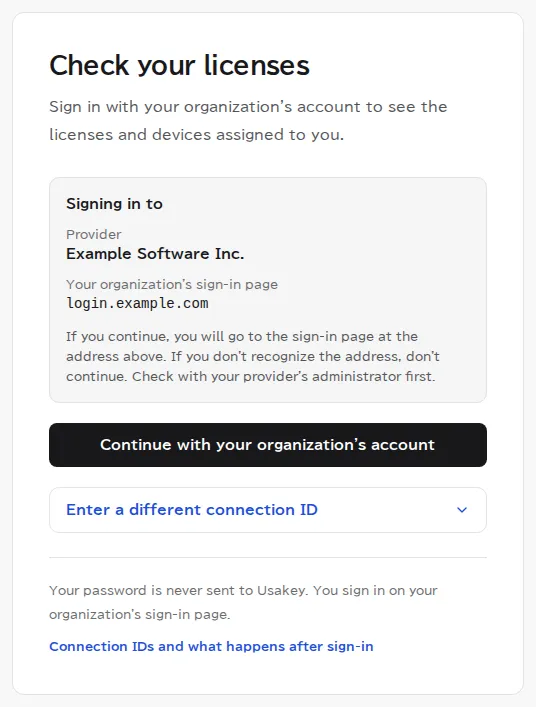
Open the URL from your software provider to see the Check your licenses page. Under the destination, check that the provider name and the address of your company's sign-in page look familiar. If they don't, stop and check with your provider.
If you received a connection ID, enter it under Enter a different connection ID on the same page.
-
Step 2Sign in with your company account
Select Continue with your organization's account to open your company's sign-in page (such as Microsoft or Google; it depends on your company). Sign in as usual, and you're taken back to the customer portal.
Set up two-factor authentication (first time only)
-
Step 3Check the licenses assigned to you
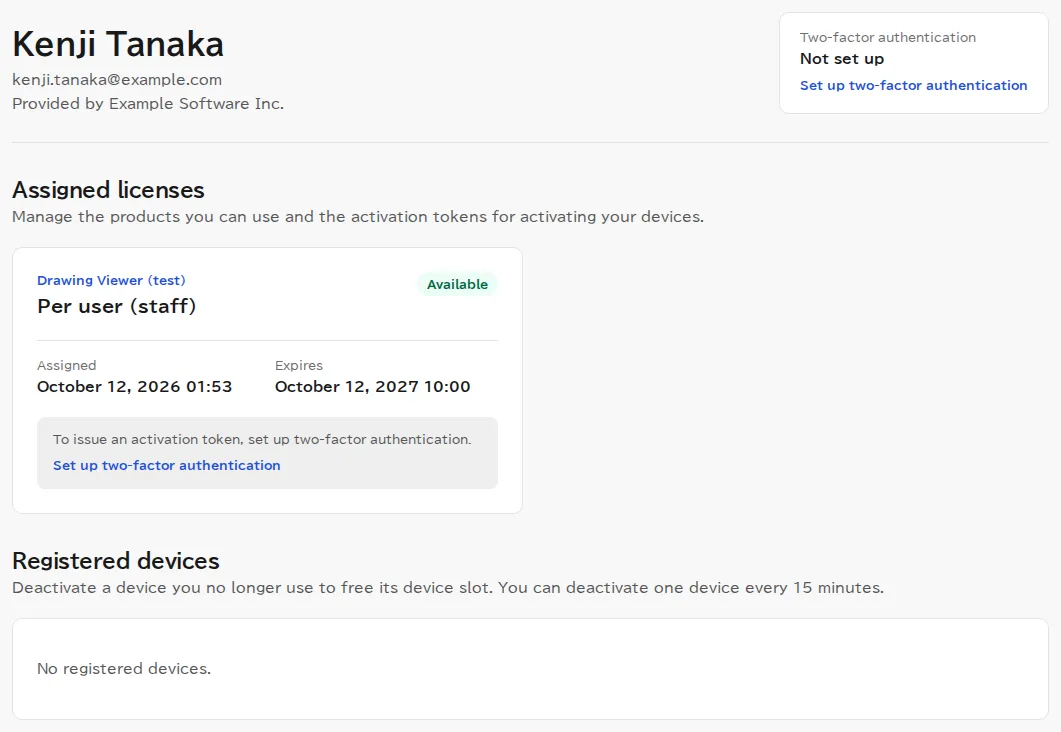
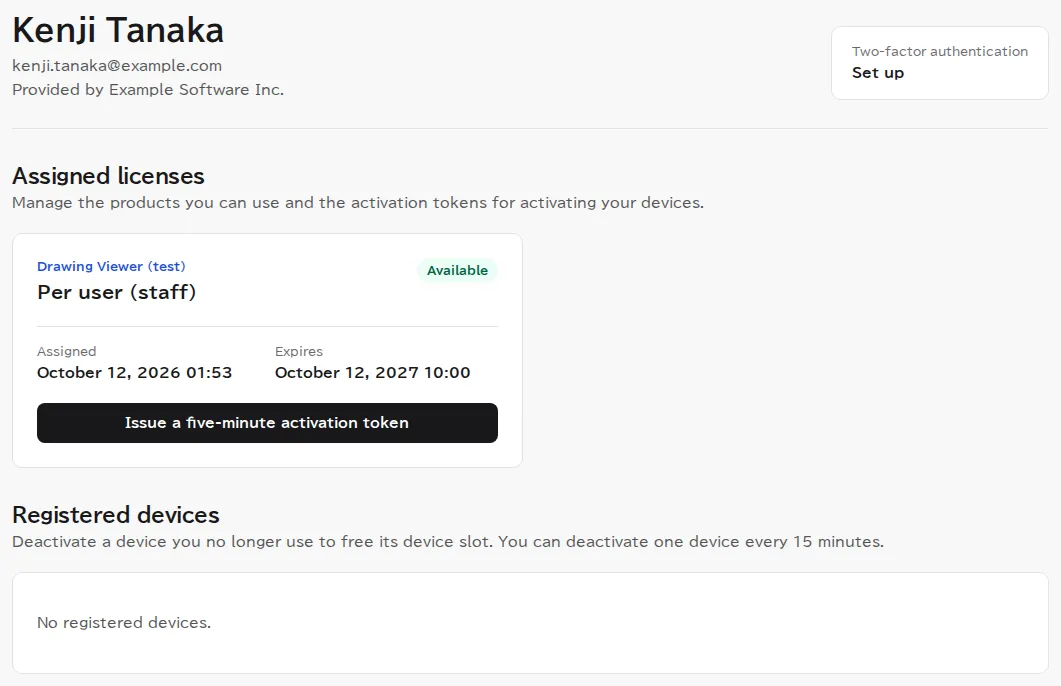
After you sign in, you see your name and your Assigned licenses. The first time, you need to set up two-factor authentication before you can create an activation token. Select Set up two-factor authentication.
If no licenses appear, none have been assigned to you yet. Contact your software provider.
-
Step 4Register a passkey or an authenticator app
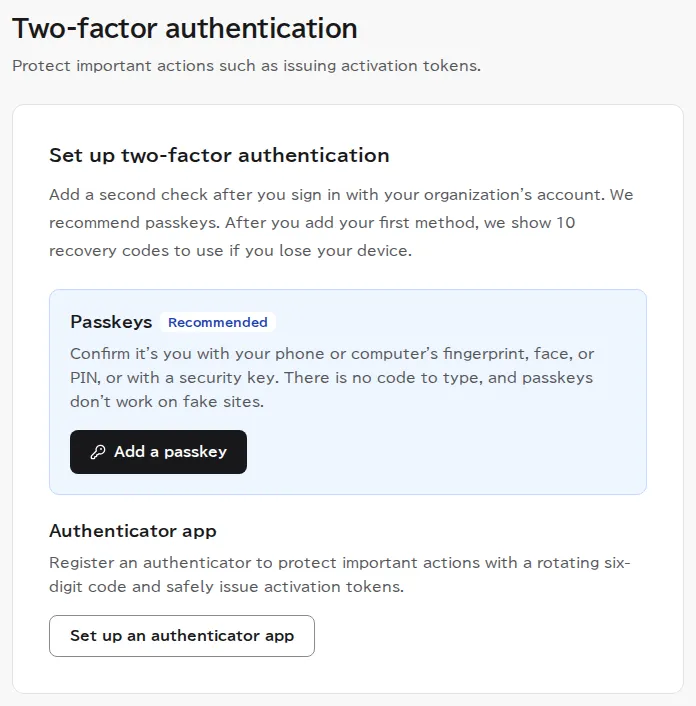
On the Set up two-factor authentication page, choose one. We recommend a passkey.
Passkey: Select Add a passkey, enter a name to tell it apart later (for example, Work PC), and select Add passkey. Confirm with your computer's or phone's fingerprint, face, or PIN, or with a security key, and the passkey is registered.
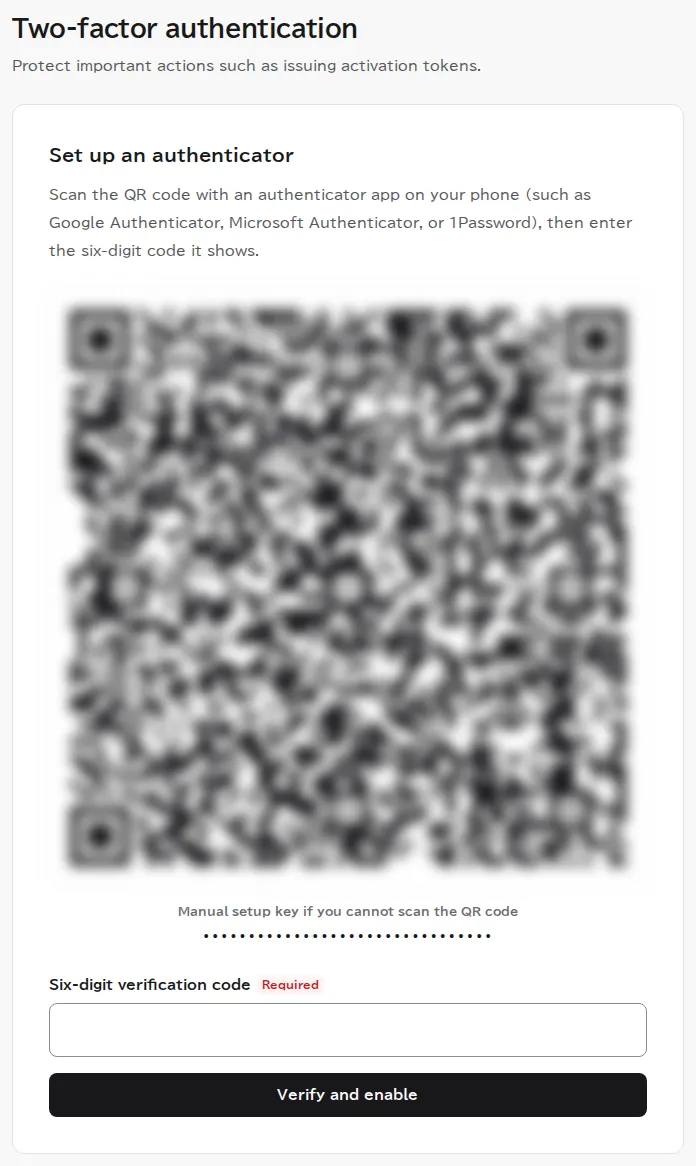
Authenticator app: Select Set up an authenticator app and scan the QR code with the authenticator app on your phone. Enter the 6-digit code it shows and select Verify and enable. If you can't scan the QR code, enter the manual setup key shown under it in your authenticator app.
-
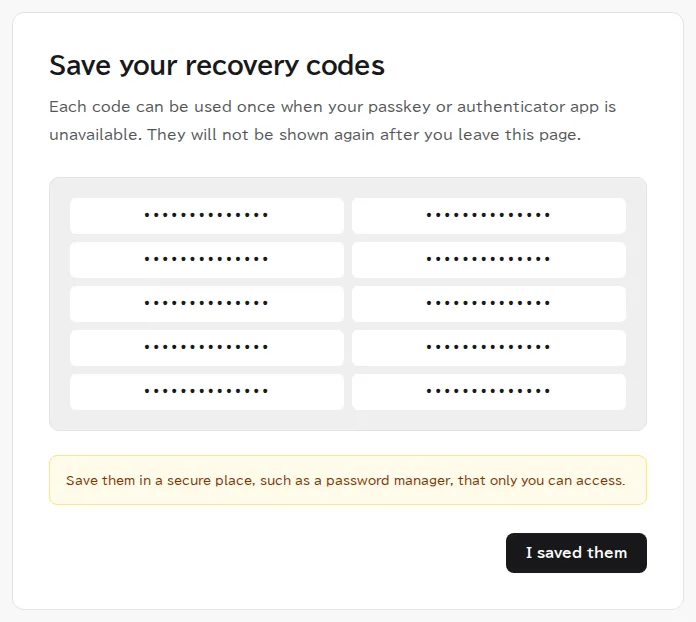
Step 5Save your recovery codes
Your recovery codes appear. Each code works once, for times when you can't use your passkey or authenticator app, for example if you lose your device. Save them somewhere only you can see, such as a password manager, then select I saved them. You can't see the same codes again after you leave this page.
Create an activation token
-
Step 6Create it from the software's card
-
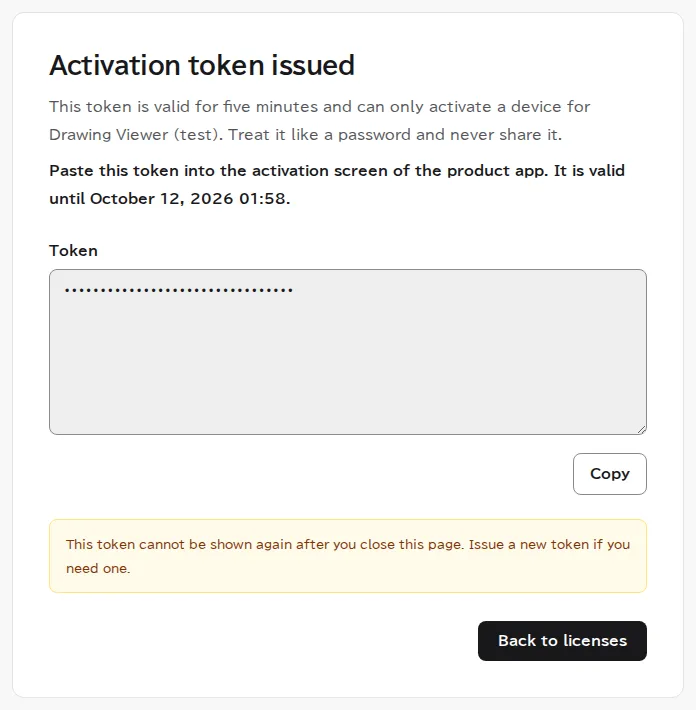
Step 7Copy the activation token
Paste it into the software
-
Step 8Paste the token into the activation screen
Paste the activation token you copied into the software's activation (license entry) screen. If it also asks for a license key, enter the key your provider gave you. Once activation succeeds, you can use the software on that computer, and you don't need a token each time you start it.
Each product's screens are different. Here's what it looks like when you do the same thing with the Usakey integration starter.
$ sdk_demo.py activate-named USK_TEST-••••-••••-••••-4KFR ••••••••••••
[OK] Available
Example output when a device is activated with an activation token (Usakey integration starter). The license key and token are masked.
When you replace your computer
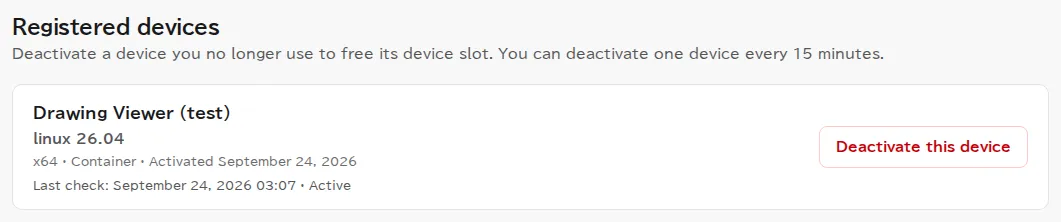
When you deactivate a computer you no longer use, its slot becomes available for a new one. In the customer portal, under Registered devices, select Deactivate this device for that computer. The software stops working on it at its next check. You can deactivate once every 15 minutes.
Troubleshooting
- I pasted the token, but the software says it can't be used
- The token may have expired (it lasts 5 minutes). Create a new token in the customer portal and paste it again.
- I can't sign in with my company account
- For your company account, contact your IT department. For the customer portal connection, contact your software provider.
- I changed or lost my phone or computer
- Sign in with a saved recovery code. Then, from Security in the customer portal, register a passkey on your new device (or set up your authenticator app again) and remove the passkey of the lost device. If you have no recovery codes either, contact your software provider. A passkey on a second device keeps you covered if you lose one.
- It asks me to complete multi-factor authentication with my organization's account
- Your software provider uses your organization account's multi-factor authentication as the customer portal's two-factor authentication. Complete multi-factor authentication with your organization's account (some providers require a passkey or security key), then sign in again.
- My license doesn't appear or has expired
- Your software provider manages assignments and contracts. Contact your provider.
Screenshots were taken in a test environment with sample data. IDs such as product IDs, license keys, and activation tokens are masked. Some details may change as we improve the screens.